

Status Bar
ML4W OS includes a Quickshell-based status bar. You can enable the status bar from the sidebar, where you can also disable Waybar. The colors are generated automatically from the wallpaper.

The status bar appears at the top of the screen. When you hover over the collapsed bar with your mouse, it expands and shows more modules. You can also expand the status bar with SUPER + SPACE and use the arrow keys to move between the modules. Press Return to run the selected module's action.
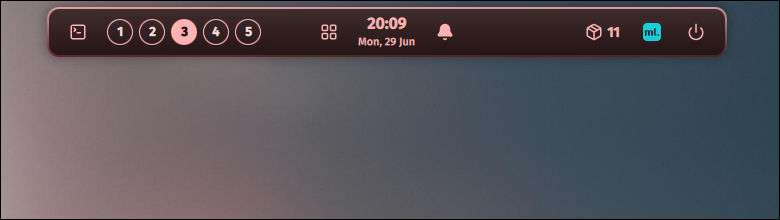
By default, the status bar starts expanded.
You can toggle the status bar from the sidebar or with SUPER + CTRL + B.
Calendar
The status bar includes a calendar. It opens below the clock module when you click the clock. It shows the current month with week numbers, and you can switch between months and jump back to the current month with the Today button.
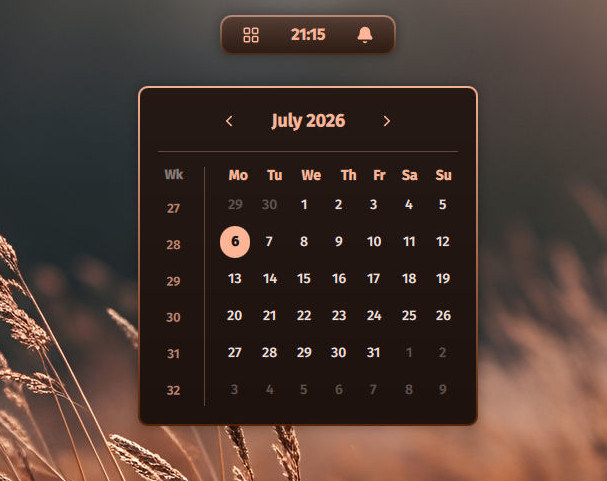
You can also open the calendar with SUPER + CTRL + C or with this command in your terminal:
ml4w-calendarThe calendar closes when you press Escape or click outside of it.
You can set an alternative calendar app, e.g. GNOME Calendar, with the calendarCommand option in the clock section of the configuration. A right click on the clock then opens that app:
{
    "clock": {
        "calendarCommand": "gnome-calendar"
    }
}
The command runs through bash, so arguments work too.
Configuration
The status bar is configured in one file only: ~/.config/ml4w-statusbar/config.json. The file is created on first start and merged over the built-in defaults, so it only needs the values you want to change. You can edit it directly.
INFO
In earlier versions the status bar was configured in ~/.config/ml4w-statusbar/statusbar.json or ~/.config/ml4w/settings/statusbar.json. If one of these files exists, its settings are migrated into config.json on first start.
The status bar writes some settings back into the file itself: enabled, alwaysExpanded and autohide.
Here is the default configuration with all available options:
{
    "bar": {
        "height": 40,
        "reservedHeight": 72,
        "enabled": true,
        "alwaysExpanded": true,
        "autohide": false,
        "hideDelay": 400
    },
    "pill": {
        "collapsedWidth": 0,
        "expandedWidth": 680,
        "radius": 12,
        "animationDuration": 350
    },
    "modules": {
        "left":   ["terminal", "workspaces"],
        "center": ["launcher", "clock", "swaync"],
        "right":  ["updates", "battery", "powerprofile", "volume", "systemtray", "logo", "power"]
    },
    "border": {
        "width": 2,
        "colorTop": "",
        "colorBottom": ""
    },
    "opacity": {
        "collapsed": 0.6,
        "expanded": 0.8
    },
    "clock": {
        "format": "HH:mm",
        "dateFormat": "ddd, dd MMM",
        "calendarCommand": ""
    },
    "workspaces": {
        "count": 5
    },
    "systemtray": {
        "chip": true
    }
}
After you change the configuration, reload the status bar from the sidebar or with SUPER + SHIFT + B.
The full default configuration with comments is on GitHub: https://github.com/mylinuxforwork/dotfiles/blob/main/dotfiles/.config/quickshell/StatusbarApp/config.json